Translation API Configuration
Open the Translation API Configuration Window
-
Hover your mouse over the "Settings" button icon.

-
Click on the "Translation API Configuration" icon.

Translation API Description
-
This extension integrates numerous translation APIs. You can choose the appropriate translation API according to your needs.

-
They are currently divided into two categories: "No API Key Required" and "API Key Required".
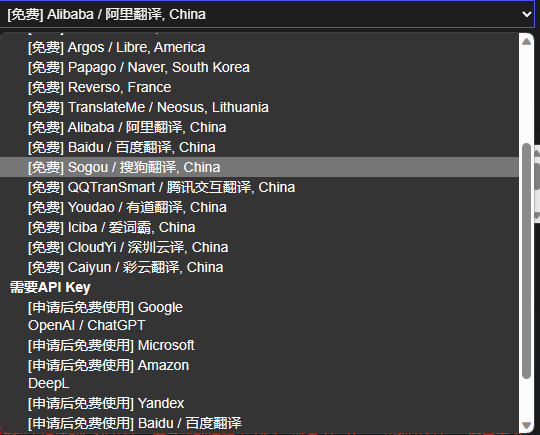
No API Key Required API Key Required Cost Free Mostly free
There may be a limit on the number of translated characters per month, but the free quota is usually sufficient for our use.Stability Very unstable
Some may not work due to different computer and network environments.
Very unstable and may fail at any time.
Translation may succeed during testing, but may fail during actual use.Very stable
Basic failure-free translation.Speed Very slow Very fast -
For "API Key Required" APIs, after selecting one, there will be a tutorial document for you to apply for it according to the tutorial.
-
For "No API Key Required" APIs, if the translation fails, please try switching to another API and do not submit an issue.
-
Please choose the appropriate API based on the translation speed and quality of each API.
API Testing
-
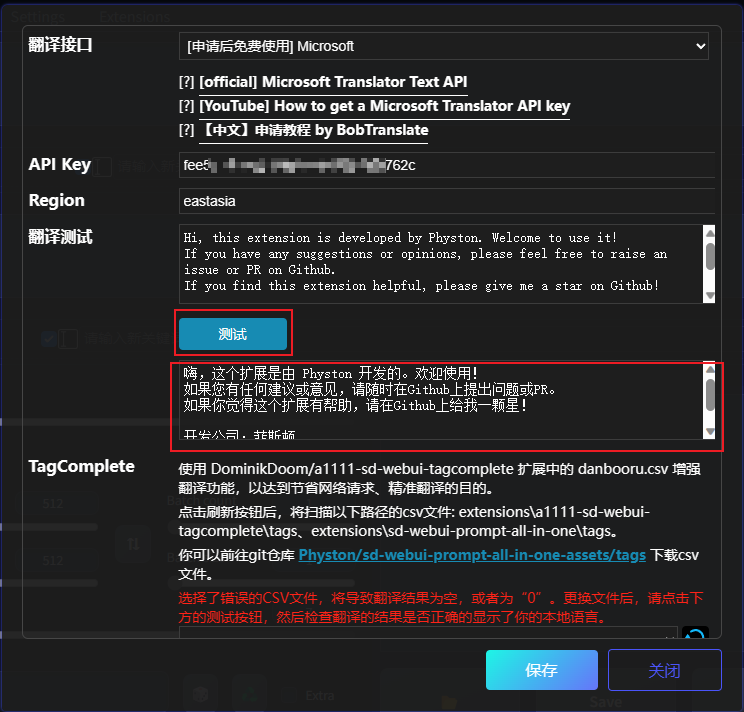
Select an API and click the "Test" button.
-
If the translation is successful, the translation result will be displayed.
-
If the translation fails, an error message will be displayed.
TagComplete Translation enhancement
Enable the CSV file in a1111-sd-webui-tagcomplete to enhance the translation function.
After enabling this function, the number of network requests will be reduced and the translation result will be more accurate.
The principle of this function is that for each word, the translation result will be automatically searched from the CSV file. If found, the network translation API will not be requested again. If not found, the network translation API will be requested.
Therefore, if the word you want to translate is not in your CSV file, this function will not work.
-
This function does not require you to install the a1111-sd-webui-tagcomplete extension. You can directly put the translated CSV file into the
extensions\sd-webui-prompt-all-in-one\tagsdirectory. If there is no such directory, please create one yourself.
-
You need to select the correct CSV file, otherwise it will cause partial word translation failure, translation result of 0, incorrect translation language, etc.
-
You can use Excel to open the CSV file and check whether the content format is correct. The correct format is as follows:
Number English Your Language (here is Chinese as an example) 1 1girl 1女孩 2 1boy 1男孩 ... ... ... 
-
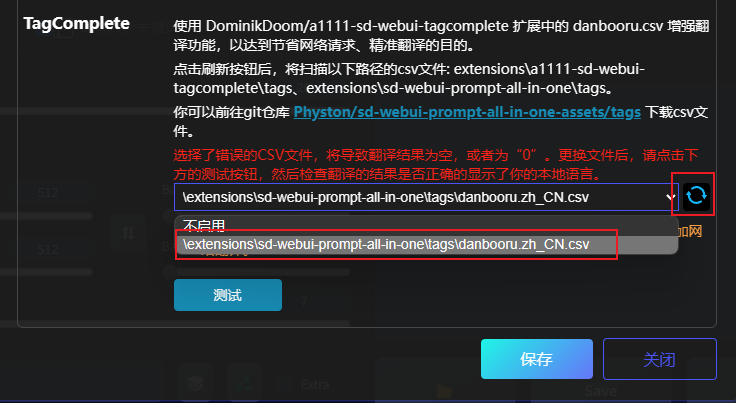
Click the "Refresh" button and select the correct CSV file.
-
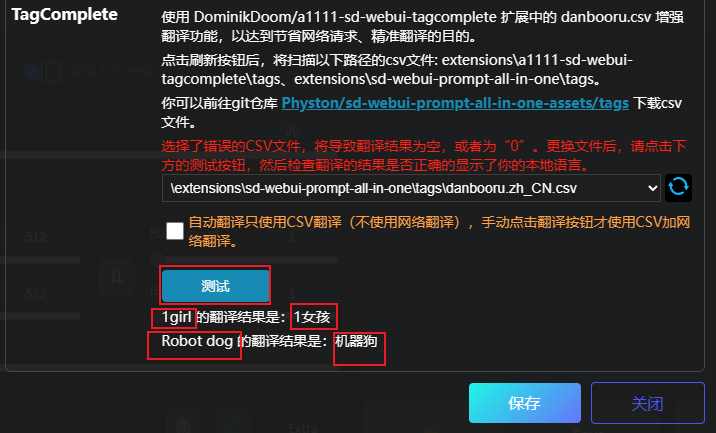
Click the "Test" button. Check whether the translation result is correct. In the test result, the English word is in front, and the translation result in your language is at the back. If the translation result at the back is not correct, please check whether your CSV file is correct, otherwise do not enable this function.
-
If you only want to use CSV for translation during automatic translation and not use the network translation API, then select the following option. After selecting, only when you manually click the translation button will the network translation API be used.
