2.0 KiB
2.0 KiB
Main Tab
This chapter will provide a detailed overview of the convenient cloud-based resource management approach offered by this solution.
Upload Model
To use extra models for inference, you will need to upload model through steps below, and follow steps here to inference with extra models.
- Within Stable Diffusion WebUI, navigate to solution main tab Amazon SageMaker, find session Cloud Assets Management.
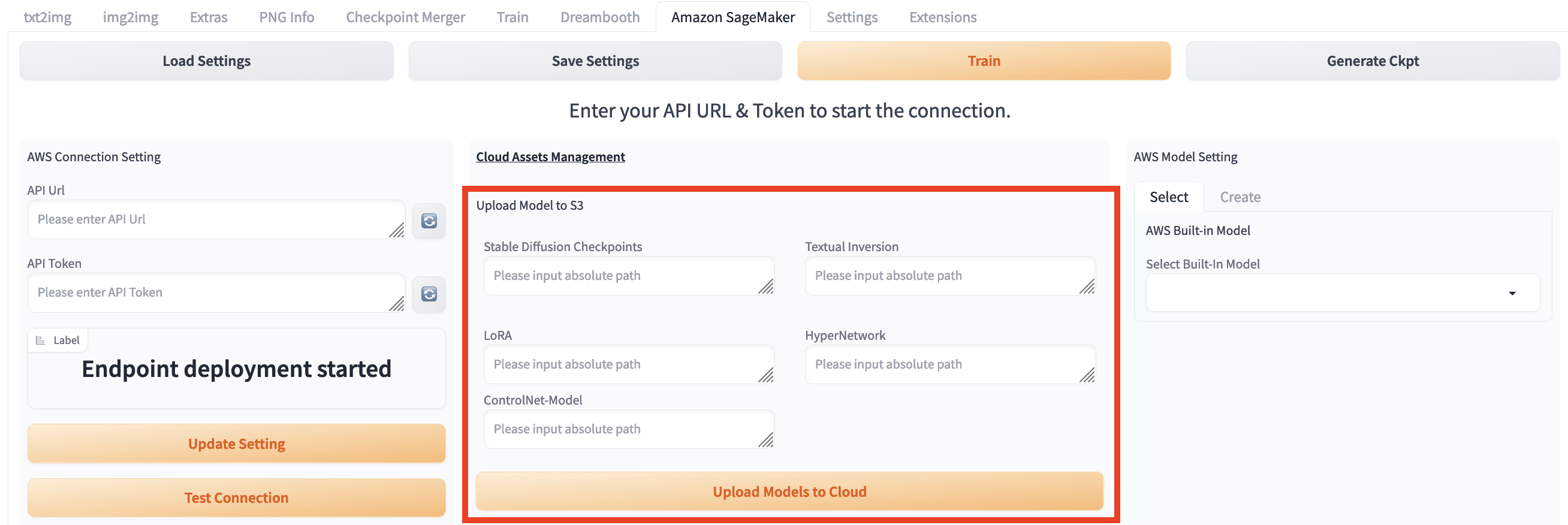
- Enter the local model path under correspoding model text box.
Note: You can upload multiple kinds of models by entering multiple local model paths in text box.
- Click Upload Models to Cloud to start uploading process.
- Message ** will appear once uploading completes.
Amazon SageMaker Endpoint Management
Deploy new endpoint
- Within Stable Diffusion WebUI, navigate to solution main tab Amazon SageMaker, find session Cloud Assets Management, Deploy New SageMaker Endpoint, select Amazon SageMaker instance type for inference under SageMaker Instance Type, and count in Please select Instance count, click Deploy, message Endpoint deployment started will appear on the left side.
- You can navigate to tab txt2img, session Amazon SageMaker Inference, refresh and select drop down list Select Cloud SageMaker Endpoint to check all the deployment status of endpoints.
Note: The format of the drop down list is:endpoint name+ deployment status (including Creating/Failed/InService)+deployment completing time。
- It will take around 10 mins for endpoint deployment status changing to InService, which indicates that the endpoint has been successfully deployed.
Delete deployed endpoints
- Refresh and select endpoint(s) under dropdown list of Select Cloud SageMaker Endpoint.
- Click Delete, message Endpoint delete completed will appear on left side, which indicates that the selected endpoint(s) havs been successfully deleted.