2.7 KiB
txt2img Guide
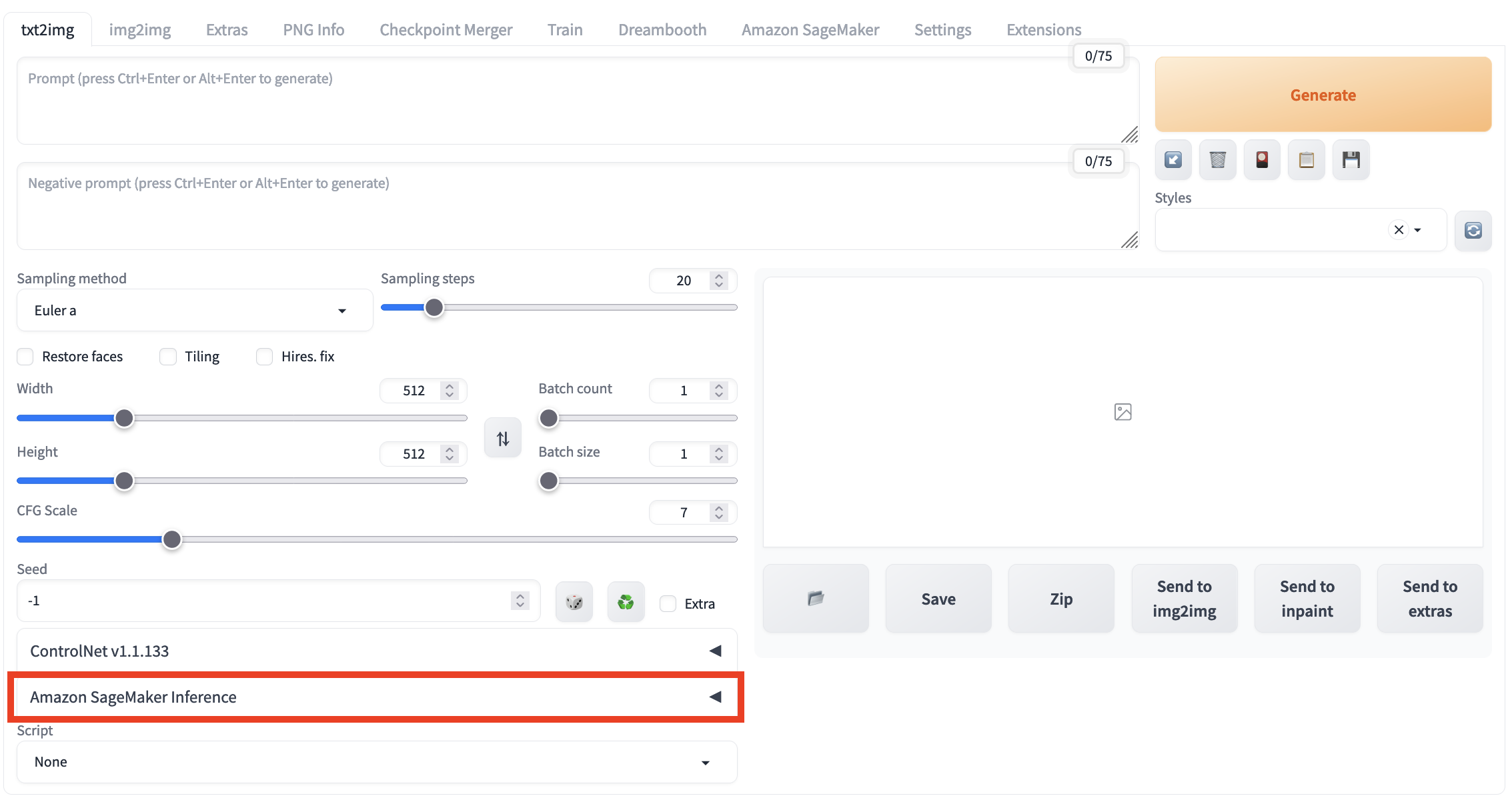
You can open the txt2img tab to perform text-to-image inference using the combined functionality of the native region of txt2img and the newly added "Amazon SageMaker Inference" panel in the solution. This allows you to invoke cloud resources for txt2img inference tasks.
General Inference
-
Navigate to txt2img tab, open Amazon SageMaker Inference panel.
-
Enter the required parameters for inference. Similar to local inference, you can customize the inference parameters of the native txt2img, including prompts, negative prompts, sampling parameters, and inference parameters.
-
Select an endpoint for inference. Refresh and select an endpoint from Select Cloud SageMaker Endpoint dropdown list that is in the InService state.
!!! Important "Notice" This field is mandatory. If you choose an endpoint that is in any other state or leave it empty, an error will occur when you click Generate on Cloud to initiate cloud-based inference.
-
Fresh and select Stable Diffusion Checkpoint (required single select) and other extra models needed in Extra Networks for Cloud Inference (optional, multi-selection allowed).
-
Click Generate on Cloud.
-
Check inference result. Fresh and select the top option among Inference Job ID dropdown list. The Output section in the top-right area of the txt2img tab will display the results of the inference once completed, including the generated images, prompts, and inference parameters. Based on this, you can perform subsequent workflows such as clicking Save or Send to img2img.
Note: The list is sorted in reverse chronological order based on the inference time, with the most recent inference task appearing at the top. Each record is named in the format of inference time -> inference id.

Controlnet Guide
-
openpose use guide
- Open ControlNet panel, check Enable, select openpose from Preprocessor, and then upload am image.
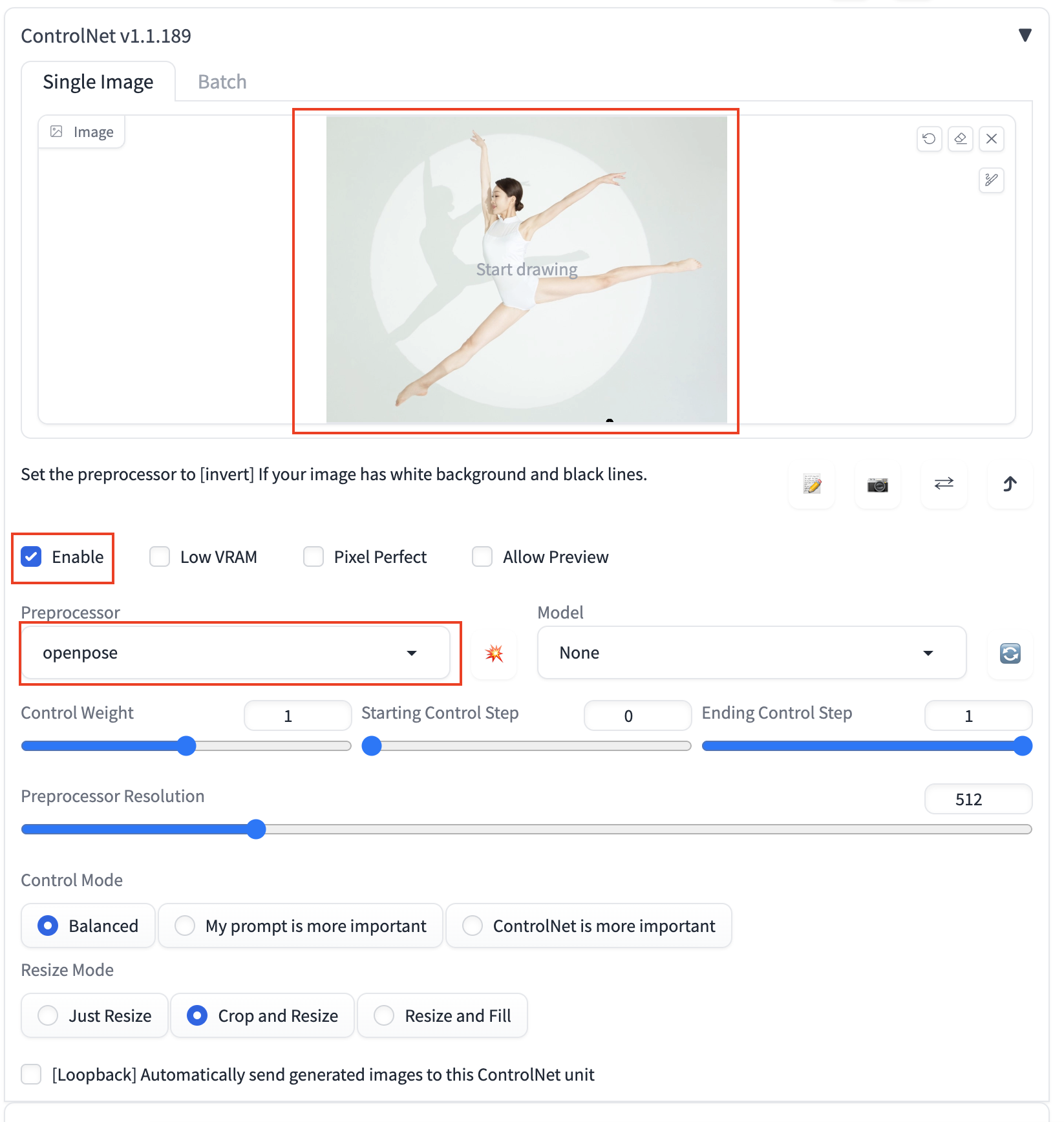
- Open Amazon SageMaker Inferencepanel, select one checkpoint from Stable Diffusion Checkpoint and one model from ControlNet-Model. For example: below is the ineference based on v1-5-pruned-emaonly.safetensors and control_openpose-fp16.safetensors, prompts a cute dog, click Generate on Cloud.

- Refresh and select the top Inference Job from Inference Job IDs, inference result will be dispaly in Output section.