94 lines
6.1 KiB
Markdown
94 lines
6.1 KiB
Markdown
# Stable Diffusion WebUIのためのControlNet内Openposeエディタ
|
||
この拡張機能は、特にStable Diffusion WebUIのControlNet拡張機能に統合するために開発されました。
|
||
|
||

|
||
|
||
# 前提条件
|
||
[ControlNet](https://github.com/Mikubill/sd-webui-controlnet) `1.1.216`以上が必要です。
|
||
|
||
# インストール
|
||

|
||

|
||
|
||
UI再起動時、拡張機能はコンパイル済みのVueアプリをGithubからダウンロードしようとします。`stable-diffusion-webui\extensions\sd-webui-openpose-editor\dist`が存在し、中に内容があるかどうかを確認してください。
|
||
|
||
中国の一部のユーザーは、autoupdateスクリプトでdistのダウンロードに問題があると報告しています。そのような状況では、ユーザーは次の2つのオプションからdistを手動で取得することができます:
|
||
|
||
### オプション1:アプリケーションのビルド
|
||
nodeJS環境が準備できていることを確認し、`Development`セクションに従ってください。アプリケーションをコンパイルするために`npm run build`を実行します。
|
||
|
||
### オプション2:コンパイル済みアプリケーションのダウンロード
|
||
[リリース](https://github.com/huchenlei/sd-webui-openpose-editor/releases)ページからコンパイル済みアプリケーション(`dist.zip`)をダウンロードできます。リポジトリのルートでパッケージを解凍し、解凍したディレクトリが`dist`という名前であることを確認してください。
|
||
|
||
# 使用法
|
||
OpenposeエディタのコアはVue3で構築されています。Gradio拡張スクリプトは、`/openpose_editor_index`上にVue3アプリケーションをマウントする薄いラッパーです。
|
||
|
||
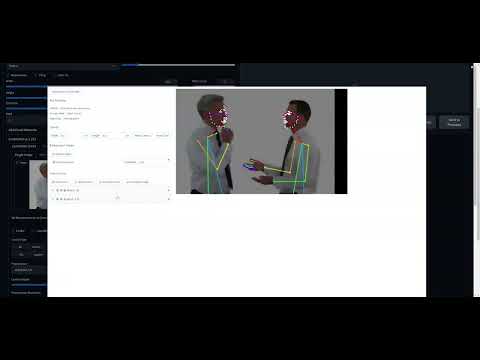
必要であれば、ユーザーは`localhost:7860/openpose_editor_index`でエディタに直接アクセスできますが、主なエントリーポイントはControlNet拡張機能内でエディタを呼び出すことです。ControlNet拡張機能で、任意のopenpose前処理器を選択し、前処理器実行ボタンを押します。前処理結果のプレビューが生成されます。生成された画像の右下隅の`編集`ボタンをクリックすると、モーダル内にopenposeエディタが表示されます。編集後、`ControlNetにポーズを送信`ボタンをクリックすると、ポーズがControlNetに送り返されます。
|
||
|
||
以下のデモは基本的なワークフローを示しています:
|
||
<!-- https://youtu.be/WEHVpPNIh8M -->
|
||
[](http://www.youtube.com/watch?v=WEHVpPNIh8M)
|
||
|
||
# 特長
|
||
1. controlnetで使用される顔/手のサポート。
|
||
- 拡張機能はcontrolnetの前処理結果で顔/手のオブジェクトを認識します。
|
||
- ユーザーは、前処理結果がそれらを欠落している場合に顔/手を追加することができます。これは以下のどちらかで行うことができます。
|
||
- デフォルトの手を追加する(顔はキーポイントが多すぎる(70キーポイント)ため、手動でそれらを調整することは非常に困難なため、サポートされていません。)
|
||
- ポーズJSONをアップロードしてオブジェクトを追加する。最初の人の対応するオブジェクトが使用されます。
|
||
1. 可視性の切り替え
|
||
- キーポイントがControlNet前処理器に認識されない場合、その座標は`(-1, -1)`になります。このような無効なキーポイントはエディタで不可視に設定されます。
|
||
- ユーザーがキーポイントを不可視に設定し、ポーズをcontrolnetに戻すと、キーポイントが接続する肢節はレンダリングされません。実質的に、これがエディタで肢節を削除する方法です。
|
||
1. グループ切り替え
|
||
- キャンバスオブジェクト(手/顔/体)のキーポイントを誤って選択して変更することを避けたい場合、それらをグループ化できます。グループ化されたオブジェクトは一つのオブジェクトのように動作します。グループを拡大、回転、歪ませることができます。
|
||
|
||
|
||
# Development
|
||
## Recommended IDE Setup
|
||
|
||
[VSCode](https://code.visualstudio.com/) + [Volar](https://marketplace.visualstudio.com/items?itemName=Vue.volar) (and disable Vetur) + [TypeScript Vue Plugin (Volar)](https://marketplace.visualstudio.com/items?itemName=Vue.vscode-typescript-vue-plugin).
|
||
|
||
## Type Support for `.vue` Imports in TS
|
||
|
||
TypeScript cannot handle type information for `.vue` imports by default, so we replace the `tsc` CLI with `vue-tsc` for type checking. In editors, we need [TypeScript Vue Plugin (Volar)](https://marketplace.visualstudio.com/items?itemName=Vue.vscode-typescript-vue-plugin) to make the TypeScript language service aware of `.vue` types.
|
||
|
||
If the standalone TypeScript plugin doesn't feel fast enough to you, Volar has also implemented a [Take Over Mode](https://github.com/johnsoncodehk/volar/discussions/471#discussioncomment-1361669) that is more performant. You can enable it by the following steps:
|
||
|
||
1. Disable the built-in TypeScript Extension
|
||
1) Run `Extensions: Show Built-in Extensions` from VSCode's command palette
|
||
2) Find `TypeScript and JavaScript Language Features`, right click and select `Disable (Workspace)`
|
||
2. Reload the VSCode window by running `Developer: Reload Window` from the command palette.
|
||
|
||
## Customize configuration
|
||
|
||
See [Vite Configuration Reference](https://vitejs.dev/config/).
|
||
|
||
## Project Setup
|
||
|
||
```sh
|
||
npm install
|
||
```
|
||
|
||
### Compile and Hot-Reload for Development
|
||
|
||
```sh
|
||
npm run dev
|
||
```
|
||
|
||
### Type-Check, Compile and Minify for Production
|
||
|
||
```sh
|
||
npm run build
|
||
```
|
||
|
||
### Run Unit Tests with [Vitest](https://vitest.dev/)
|
||
|
||
```sh
|
||
npm run test:unit
|
||
```
|
||
|
||
### Lint with [ESLint](https://eslint.org/)
|
||
|
||
```sh
|
||
npm run lint
|
||
```
|