4.8 KiB
sd-webui-infinite-image-browsing
Key Features
Excellent Performance
- Once caching is generated, images can be displayed in just a few milliseconds.
- Images are displayed by default using thumbnails with a default size of 256 pixels. You can adjust the size of the thumbnails in the global settings page.
- Extensive optimizations have been made for image preview, but you need to ensure that the file paths are different for different files. It is recommended to use a format with the created time as the file name.
'Walk' Mode
- Browse images automatically by loading the next folder
(similar to os.walk), allowing you to browse all images without paging. - Tested to work properly with over 27,000 files.
Image Search & Favorite
- Supports image search using Prompt, Model, Lora, etc.
- Tags will be listed based on their frequency of use.
- Supports tag autocomplete, translation, and customization.
- Image favorite can be achieved by toggling custom tags for images in the right-click menu.
View Image & Send To
- Supports viewing image generation information.
- Supports sending images to other tabs.
- Supports full-screen preview.
- Supports moving images in full-screen preview mode.
Standalone Operation
- Supports standalone operation without sd-webui.
- Almost all functions can be used normally.
- Click here for details.
Preview based on File Tree Structure & File operations
- Supports preview based on the file tree structure.
- Supports basic file operations as well as multi-select deletion/moving.
- Press and hold Ctrl, Shift, or Cmd to select multiple items.
- Supports sending files directly to other folders via context menu.
It is strongly recommended to use "Open in new tab" (in the upper right corner of the plugin startup page), which is much more comfortable than being embedded in Gradio. However, the "send image to other tab" function cannot be used in this mode.
Preview

Image Search
During the first use, you need to click and wait for the index generation. For my case with 20,000 images, it took about 15 seconds (with an AMD 5600X CPU and PCIe SSD). For subsequent uses, it will check whether there are changes in the folder, and if so, it needs to regenerate the index. Usually, this process is very fast.
Image search supports translation, and you need to place a "tags-translate.csv" file in the plugin folder. You can find this file in the issue . Feel free to share files for other languages to facilitate everyone's use.


Full Screen Preview

In full-screen preview mode, you can also view image information and perform operations on the context menu. It supports dragging, resizing and expanding/collapsing .
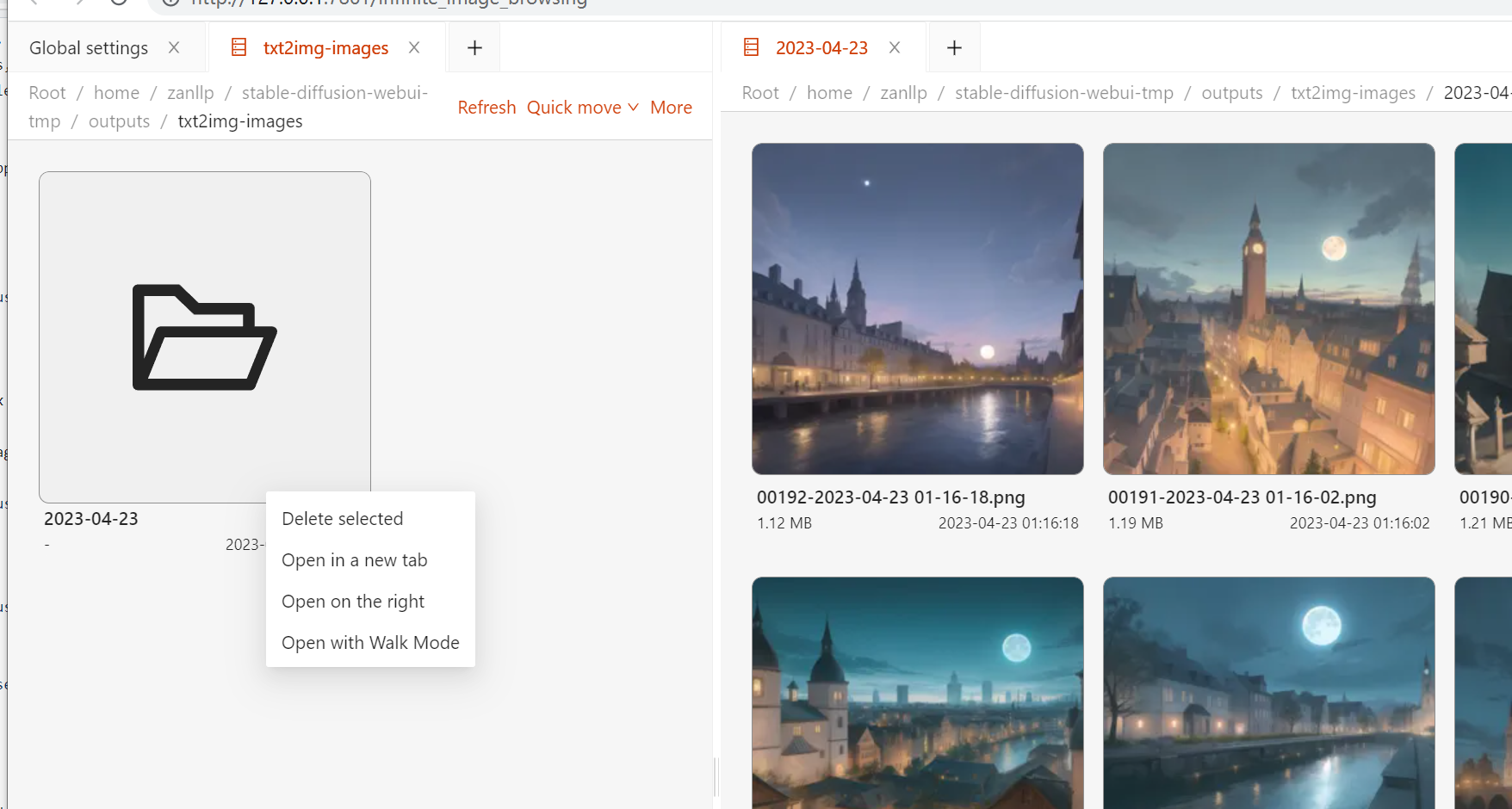
Right-click menu

Walk mode
Dark mode

FAQ
How to open the right-click menu on mobile devices?
You need to enable "Support long press to open right-click menu" in the global settings first, and then use long press to perform the operation instead of right-clicking to open the right-click menu.

How can I control the sorting/display mode/copy the current page path/move to a specific folder?
You can choose the sorting method in the upper-right corner of the TabPane
More

How to reduce mental burden when opening a large number of sub-folders within a large folder for viewing?
Recommend using the right-click menu of the folder, click 'Open in new tab' or 'Open on the right'.