189 lines
6.5 KiB
Markdown
189 lines
6.5 KiB
Markdown
<div align="center">
|
||
|
||
<img src="https://github.com/Akegarasu/lora-scripts/assets/36563862/3b177f4a-d92a-4da4-85c8-a0d163061a40" width="200" height="200" alt="SD-Trainer" style="border-radius: 25px">
|
||
|
||
# SD-Trainer
|
||
|
||
_✨ 享受 Stable Diffusion 训练! ✨_
|
||
|
||
</div>
|
||
|
||
<p align="center">
|
||
<a href="https://github.com/Akegarasu/lora-scripts" style="margin: 2px;">
|
||
<img alt="GitHub 仓库星标" src="https://img.shields.io/github/stars/Akegarasu/lora-scripts">
|
||
</a>
|
||
<a href="https://github.com/Akegarasu/lora-scripts" style="margin: 2px;">
|
||
<img alt="GitHub 仓库分支" src="https://img.shields.io/github/forks/Akegarasu/lora-scripts">
|
||
</a>
|
||
<a href="https://raw.githubusercontent.com/Akegarasu/lora-scripts/master/LICENSE" style="margin: 2px;">
|
||
<img src="https://img.shields.io/github/license/Akegarasu/lora-scripts" alt="许可证">
|
||
</a>
|
||
<a href="https://github.com/Akegarasu/lora-scripts/releases" style="margin: 2px;">
|
||
<img src="https://img.shields.io/github/v/release/Akegarasu/lora-scripts?color=blueviolet&include_prereleases" alt="发布版本">
|
||
</a>
|
||
</p>
|
||
|
||
<p align="center">
|
||
<a href="https://github.com/Akegarasu/lora-scripts/releases">下载</a>
|
||
·
|
||
<a href="https://github.com/Akegarasu/lora-scripts/blob/main/README.md">文档</a>
|
||
·
|
||
<a href="https://github.com/Akegarasu/lora-scripts/blob/main/README-zh.md">中文README</a>
|
||
</p>
|
||
|
||
LoRA-scripts(又名 SD-Trainer)
|
||
|
||
LoRA & Dreambooth 训练图形界面 & 脚本预设 & 一键训练环境,用于 [kohya-ss/sd-scripts](https://github.com/kohya-ss/sd-scripts.git)
|
||
|
||
## ✨新特性: 训练 WebUI
|
||
|
||
Stable Diffusion 训练工作台。一切集成于一个 WebUI 中。
|
||
|
||
按照下面的安装指南安装 GUI,然后运行 `run_gui.ps1`(Windows) 或 `run_gui.sh`(Linux) 来启动 GUI。
|
||
|
||
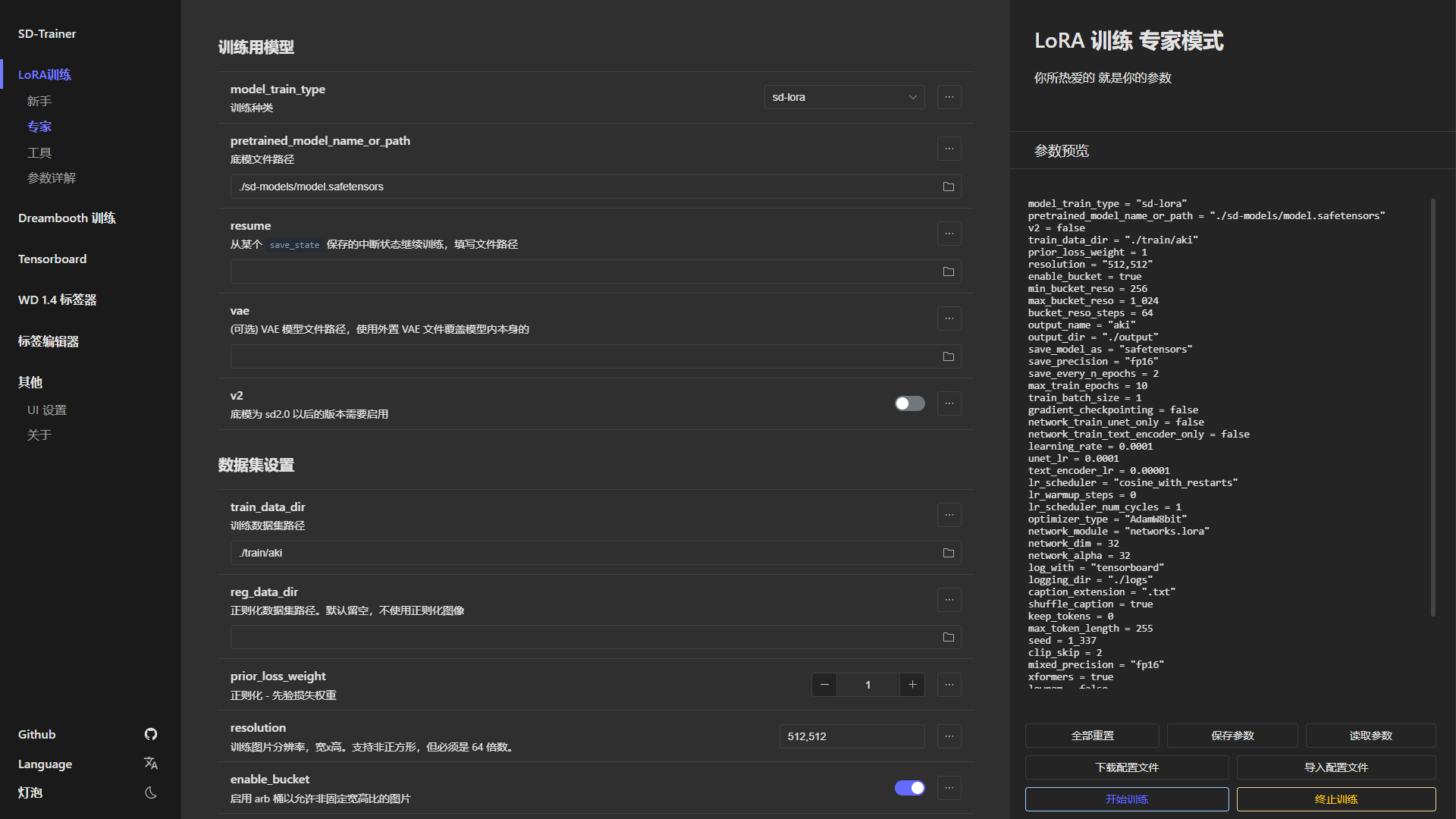
|
||
|
||
| Tensorboard | WD 1.4 标签器 | 标签编辑器 |
|
||
| ------------ | ------------ | ------------ |
|
||
| 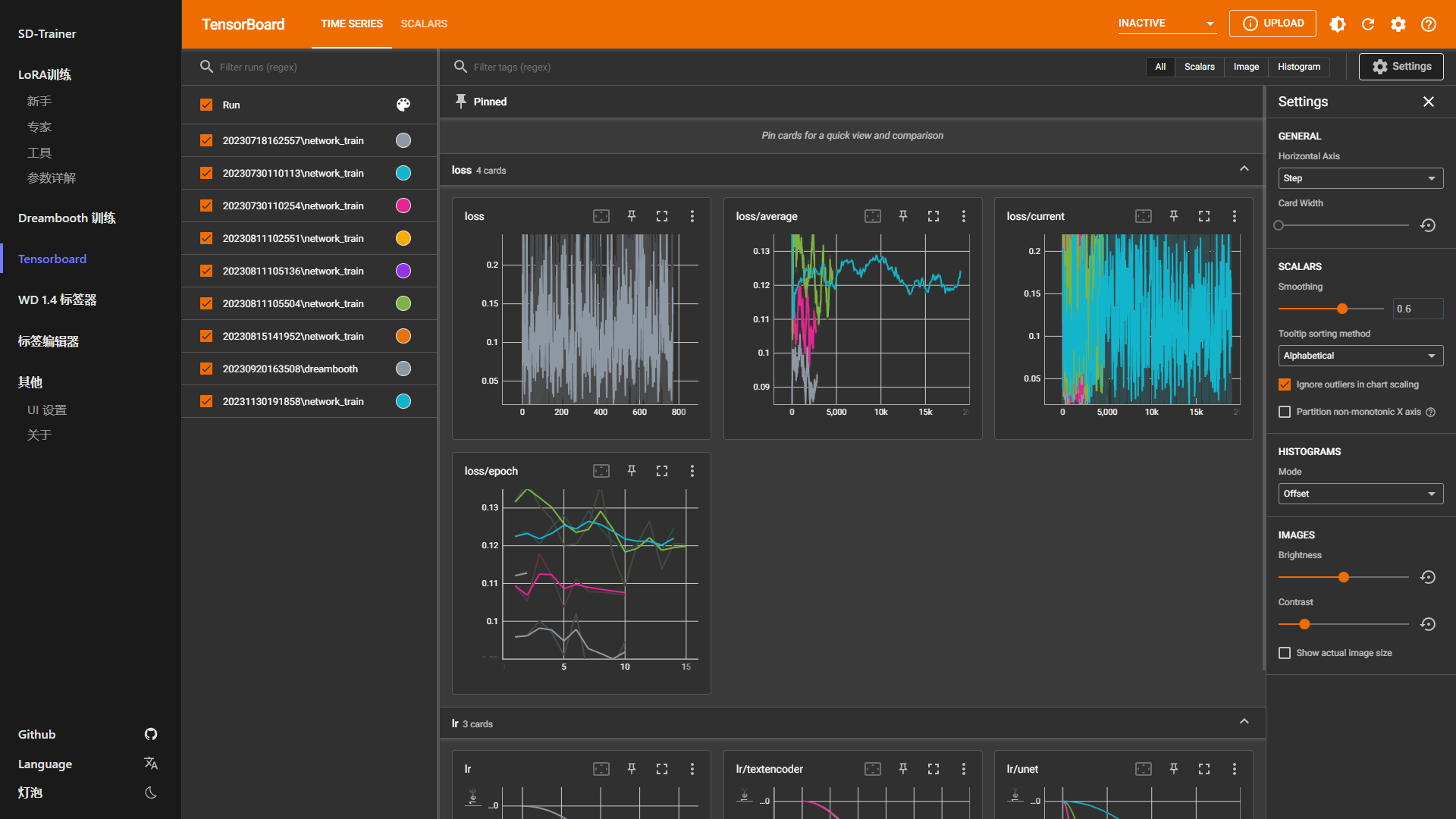 | 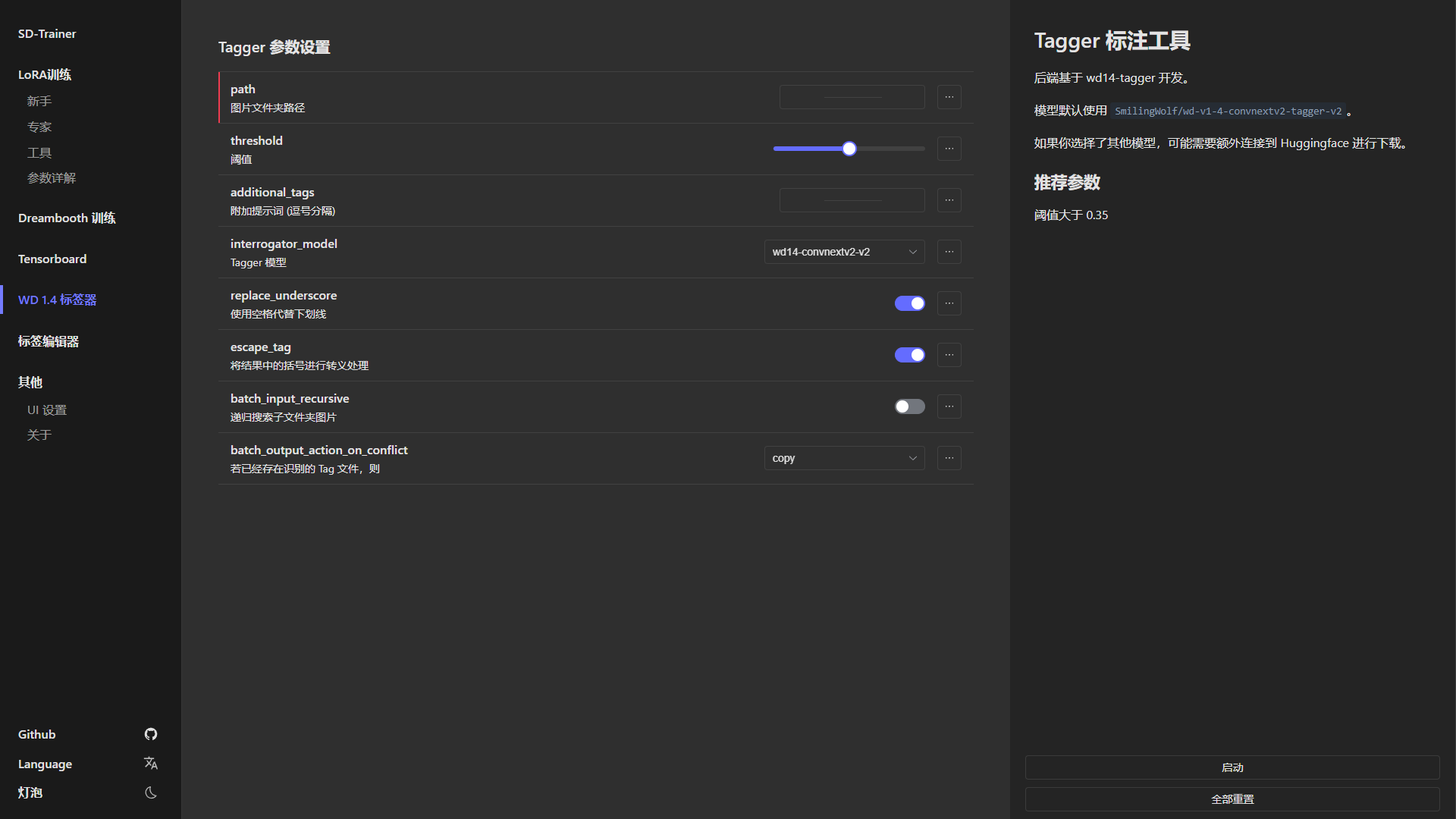 | 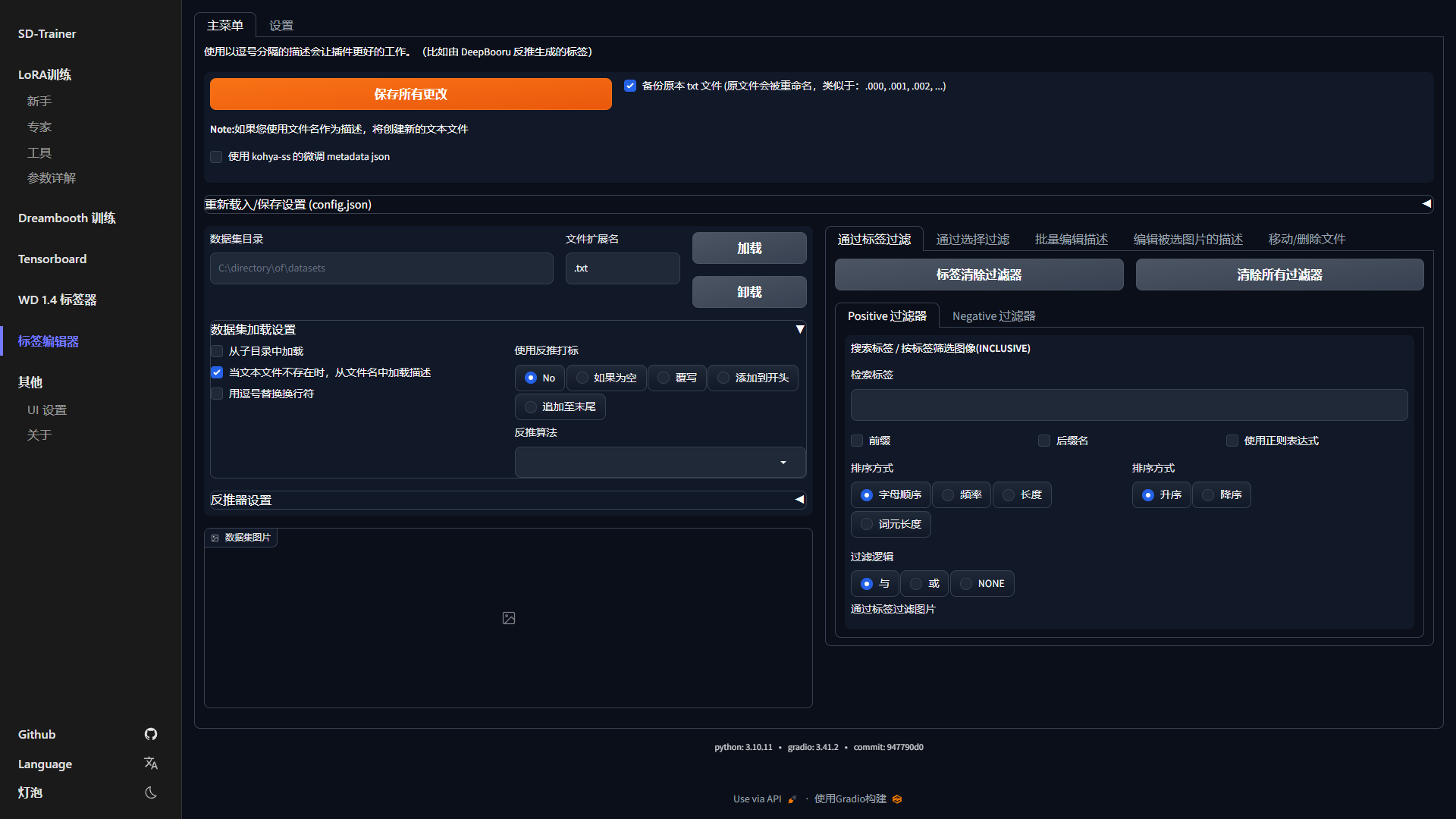 |
|
||
|
||
|
||
# 使用方法
|
||
|
||
### 必要依赖
|
||
|
||
Python 3.10 和 Git
|
||
|
||
### 克隆带子模块的仓库
|
||
|
||
```sh
|
||
git clone --recurse-submodules https://github.com/Akegarasu/lora-scripts
|
||
```
|
||
|
||
## ✨ SD-Trainer GUI
|
||
|
||
### Windows
|
||
|
||
#### 安装
|
||
|
||
运行 `install-cn.ps1` 将自动为您创建虚拟环境并安装必要的依赖。
|
||
|
||
#### 训练
|
||
|
||
运行 `run_gui.ps1`,程序将自动打开 [http://127.0.0.1:28000](http://127.0.0.1:28000)
|
||
|
||
### Linux
|
||
|
||
#### 安装
|
||
|
||
运行 `install.bash` 将创建虚拟环境并安装必要的依赖。
|
||
|
||
#### 训练
|
||
|
||
运行 `bash run_gui.sh`,程序将自动打开 [http://127.0.0.1:28000](http://127.0.0.1:28000)
|
||
|
||
### Docker
|
||
|
||
#### 编译镜像
|
||
|
||
```bash
|
||
# 国内镜像优化版本
|
||
# 其中 akegarasu_lora-scripts:latest 为镜像及其 tag 名,根据镜像托管服务商实际进行修改
|
||
docker build -t akegarasu_lora-scripts:latest -f Dockfile-for-Mainland-China .
|
||
docker push akegarasu_lora-scripts:latest
|
||
```
|
||
|
||
#### 使用镜像
|
||
|
||
> 提供一个本人已打包好并推送到 `aliyuncs` 上的镜像,此镜像压缩归档大小约 `10G` 左右,请耐心等待拉取。
|
||
|
||
```bash
|
||
docker run --gpus all -p 28000:28000 -p 6006:6006 registry.cn-hangzhou.aliyuncs.com/go-to-mirror/akegarasu_lora-scripts:latest
|
||
```
|
||
|
||
或者使用 `docker-compose.yaml` 。
|
||
|
||
```yaml
|
||
services:
|
||
lora-scripts:
|
||
container_name: lora-scripts
|
||
build:
|
||
context: .
|
||
dockerfile: Dockerfile-for-Mainland-China
|
||
image: "registry.cn-hangzhou.aliyuncs.com/go-to-mirror/akegarasu_lora-scripts:latest"
|
||
ports:
|
||
- "28000:28000"
|
||
- "6006:6006"
|
||
# 共享本地文件夹(请根据实际修改)
|
||
#volumes:
|
||
# - "/data/srv/lora-scripts:/app/lora-scripts"
|
||
# 共享 comfyui 大模型
|
||
# - "/data/srv/comfyui/models/checkpoints:/app/lora-scripts/sd-models/comfyui"
|
||
# 共享 sd-webui 大模型
|
||
# - "/data/srv/stable-diffusion-webui/models/Stable-diffusion:/app/lora-scripts/sd-models/sd-webui"
|
||
environment:
|
||
- HF_HOME=huggingface
|
||
- PYTHONUTF8=1
|
||
security_opt:
|
||
- "label=type:nvidia_container_t"
|
||
runtime: nvidia
|
||
deploy:
|
||
resources:
|
||
reservations:
|
||
devices:
|
||
- driver: nvidia
|
||
device_ids: ['0']
|
||
capabilities: [gpu]
|
||
```
|
||
|
||
关于容器使用 GPU 相关依赖安装问题,请自行搜索查阅资料解决。
|
||
|
||
## 通过手动运行脚本的传统训练方式
|
||
|
||
### Windows
|
||
|
||
#### 安装
|
||
|
||
运行 `install.ps1` 将自动为您创建虚拟环境并安装必要的依赖。
|
||
|
||
#### 训练
|
||
|
||
编辑 `train.ps1`,然后运行它。
|
||
|
||
### Linux
|
||
|
||
#### 安装
|
||
|
||
运行 `install.bash` 将创建虚拟环境并安装必要的依赖。
|
||
|
||
#### 训练
|
||
|
||
训练
|
||
|
||
脚本 `train.sh` **不会** 为您激活虚拟环境。您应该先激活虚拟环境。
|
||
|
||
```sh
|
||
source venv/bin/activate
|
||
```
|
||
|
||
编辑 `train.sh`,然后运行它。
|
||
|
||
#### TensorBoard
|
||
|
||
运行 `tensorboard.ps1` 将在 http://localhost:6006/ 启动 TensorBoard
|
||
|
||
## 程序参数
|
||
|
||
| 参数名称 | 类型 | 默认值 | 描述 |
|
||
|------------------------------|-------|--------------|-------------------------------------------------|
|
||
| `--host` | str | "127.0.0.1" | 服务器的主机名 |
|
||
| `--port` | int | 28000 | 运行服务器的端口 |
|
||
| `--listen` | bool | false | 启用服务器的监听模式 |
|
||
| `--skip-prepare-environment` | bool | false | 跳过环境准备步骤 |
|
||
| `--disable-tensorboard` | bool | false | 禁用 TensorBoard |
|
||
| `--disable-tageditor` | bool | false | 禁用标签编辑器 |
|
||
| `--tensorboard-host` | str | "127.0.0.1" | 运行 TensorBoard 的主机 |
|
||
| `--tensorboard-port` | int | 6006 | 运行 TensorBoard 的端口 |
|
||
| `--localization` | str | | 界面的本地化设置 |
|
||
| `--dev` | bool | false | 开发者模式,用于禁用某些检查 |
|