18 KiB
Civitai Shortcut
Stable Diffusion Webui Extension for Civitai, to download civitai shortcut and models.
Install
Stable Diffusion Webui's Extension tab, go to Install from url sub-tab. Copy this project's url into it, click install.
git clone https://github.com/sunnyark/civitai-shortcut
Usage instructions
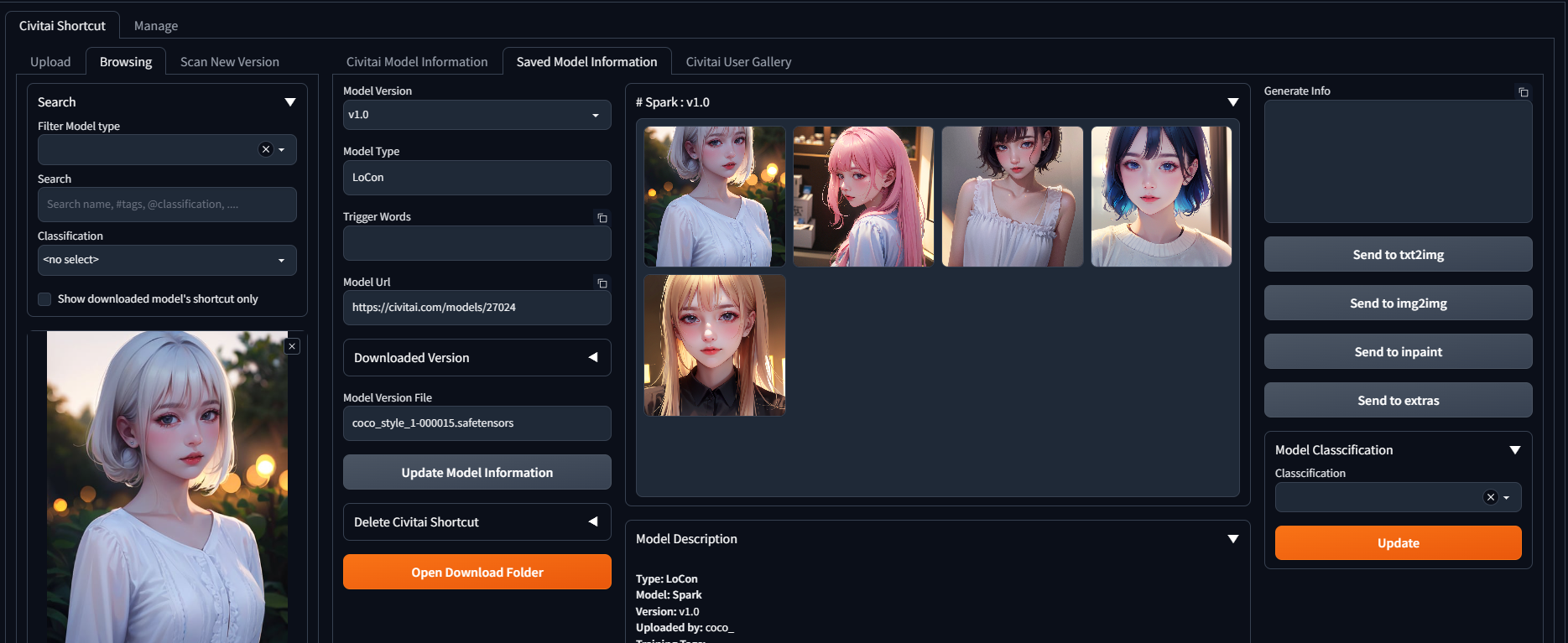
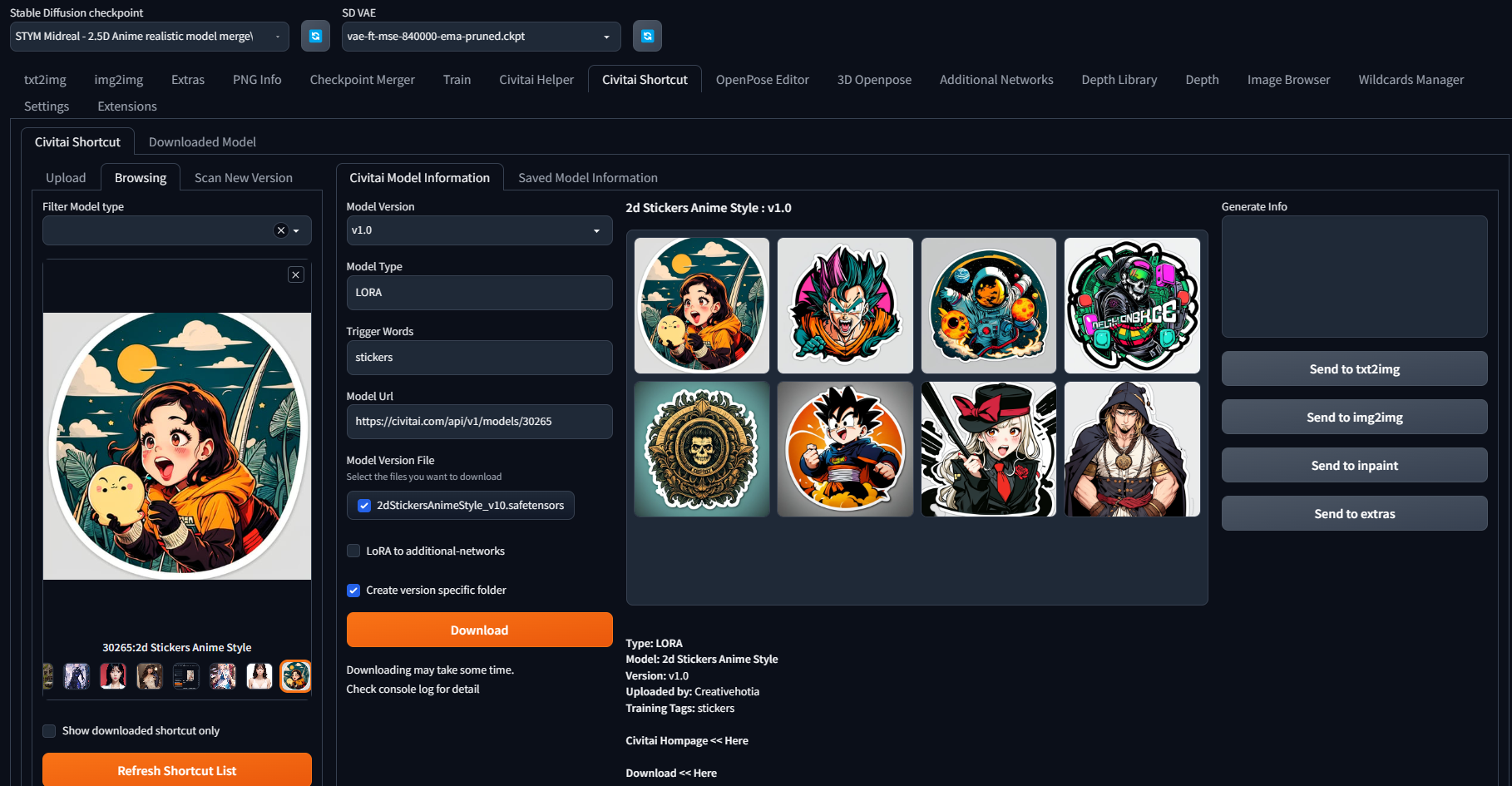
- The information in the Civitai model information tab is obtained in real-time from the Civitai website. Download : downloads the model for the selected version. You can choose to create specific folders for each version. The downloaded model will be automatically saved in the appropriate location, and a preview image and info will be generated together with it.
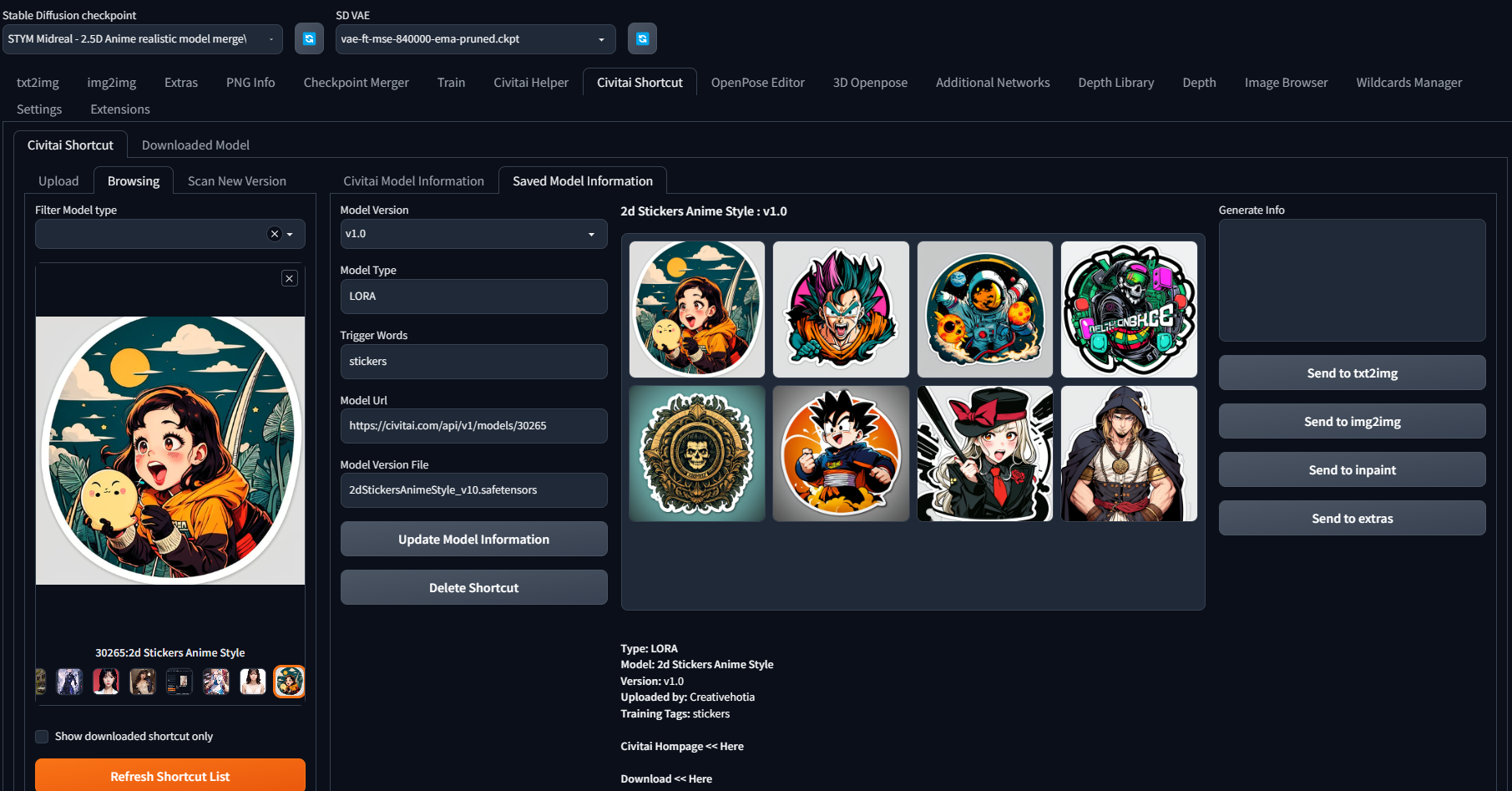
- The information in the Saved model information tab are composed of the information saved on the Civitai website when creating the shortcut. Update Model Information : updates the information of an individual shortcut to the latest information. This function only works when the site is functioning normally. Delete Shortcut : deletes the information of a registered shortcut.
- Civitai User Gallery : The Civitai User Gallery allows users to view uploaded images.


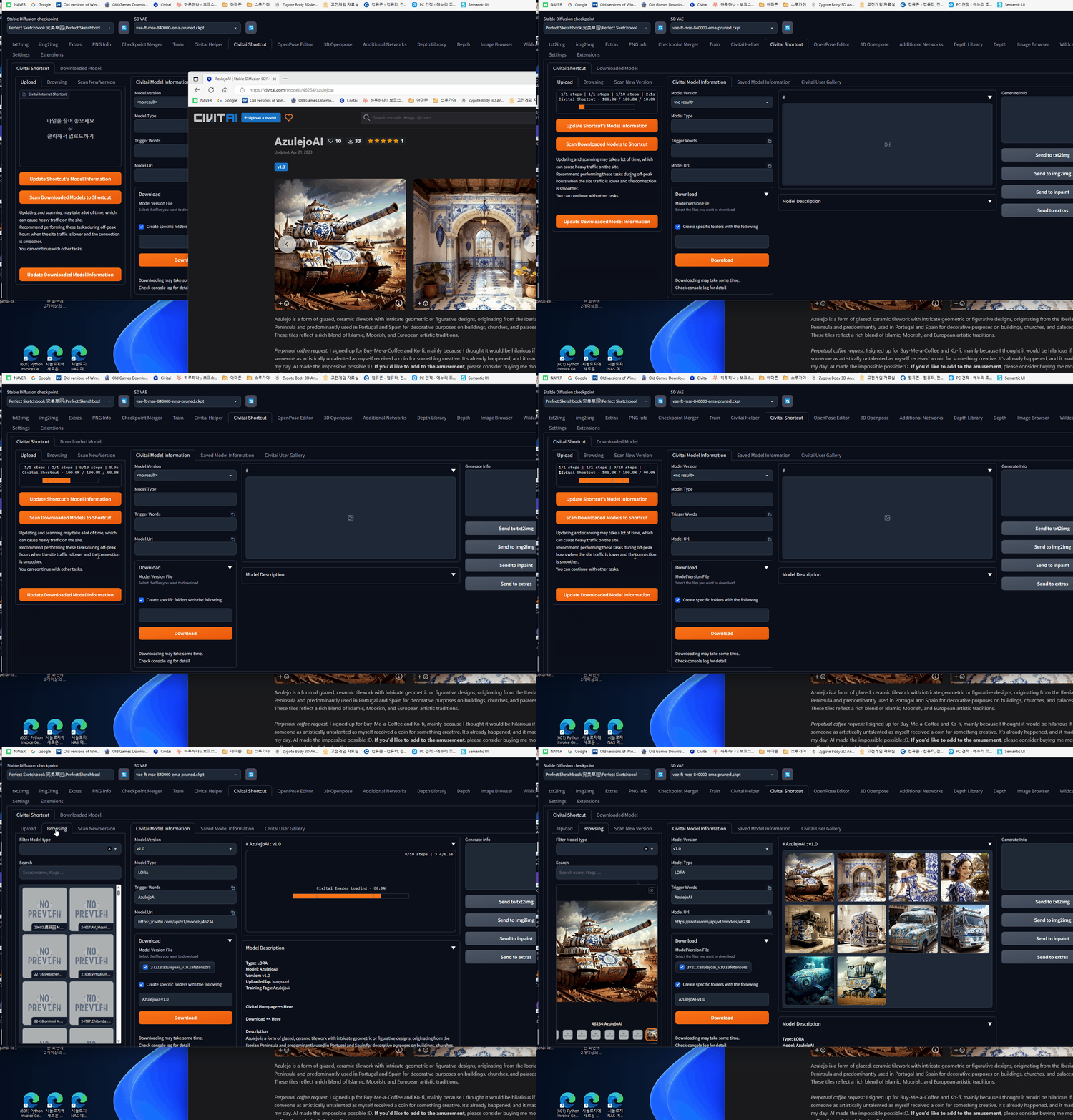
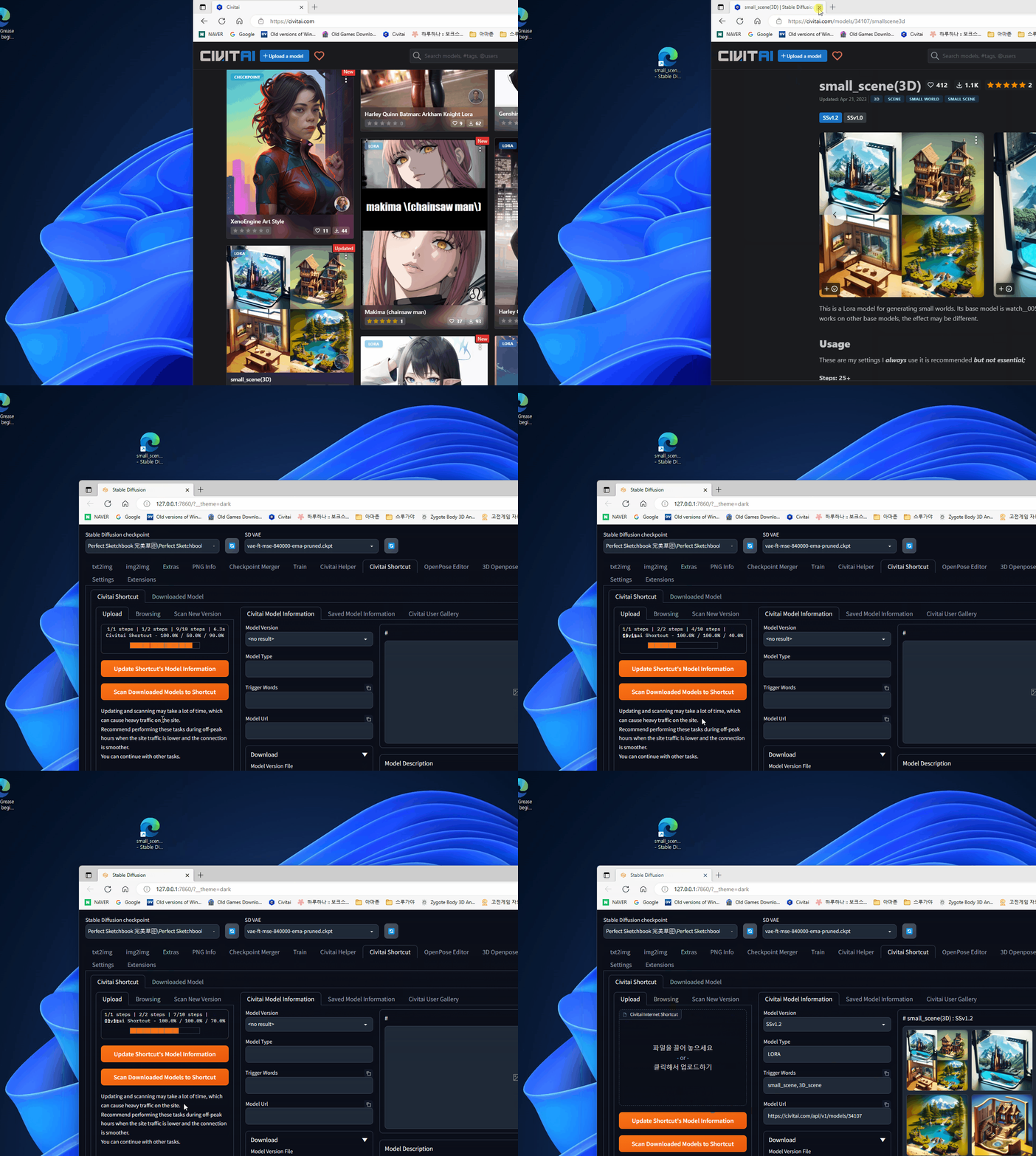
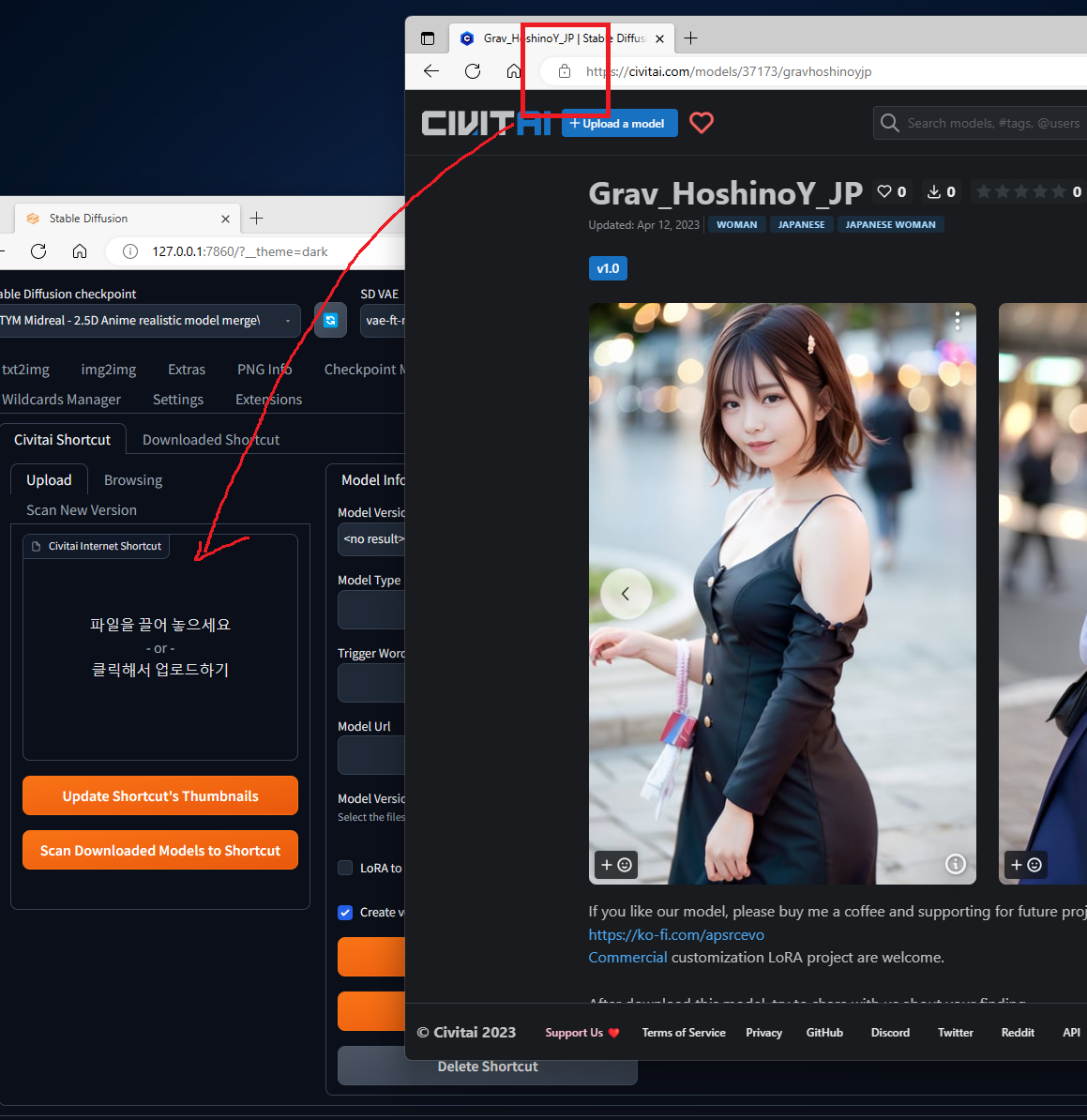
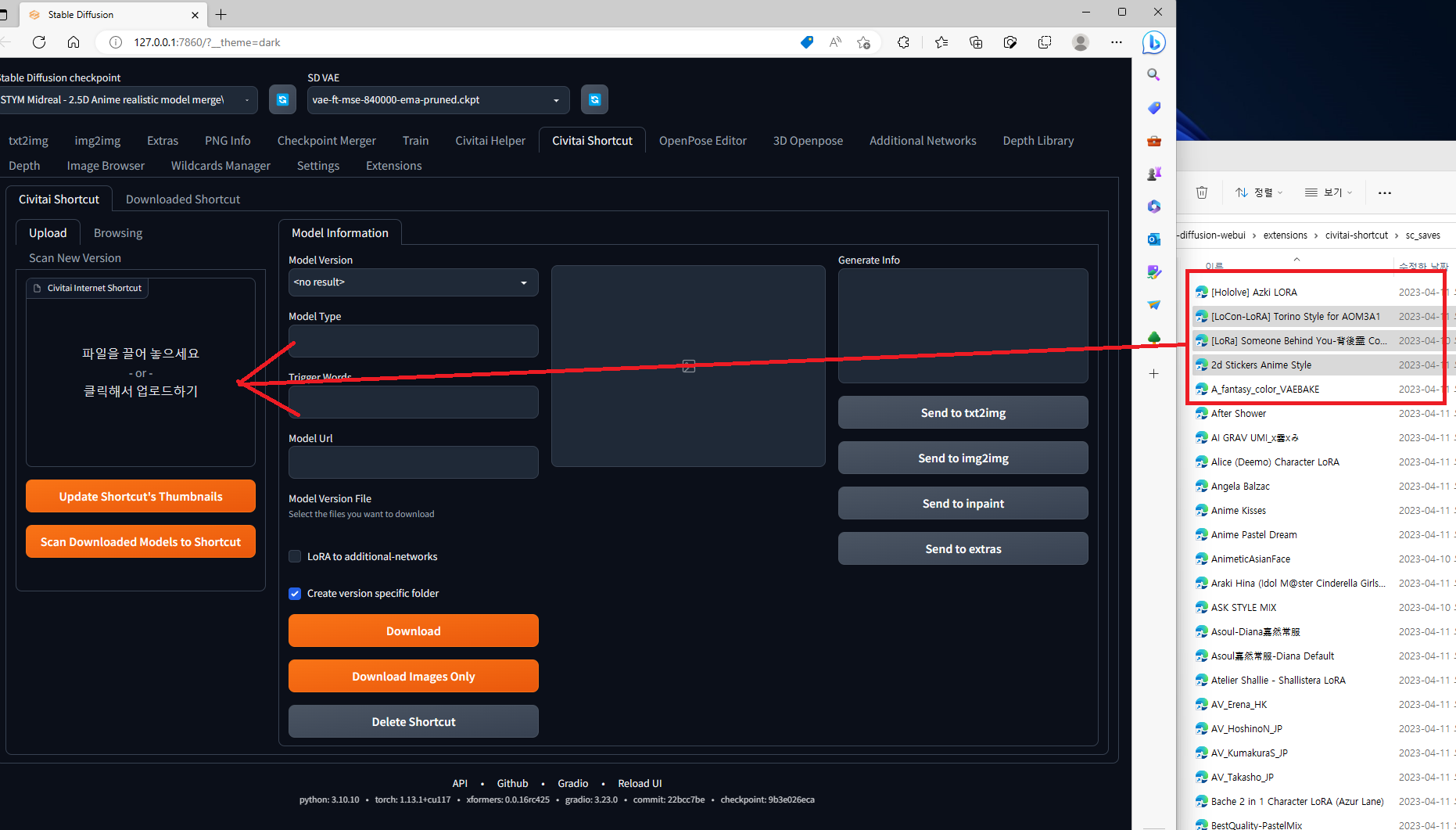
- Upload : This function creates a shortcut that can be used by the extension when you enter the Civitai site's model URL. It only works when the site is functioning properly. You can either click and drag the URL from the address bar or drag and drop saved internet shortcuts. You can also select multiple internet shortcuts and drop them at once.
- Browsing : This function displays the registered shortcuts in thumbnail format, and when selected, displays their details on the right-hand side of the window. This function works independently of the Civitai site.
- Scan New Version : This is a function that searches for the latest version of downloaded models on the Civitai site. It retrieves information from the site and only functions properly when the site is operational.
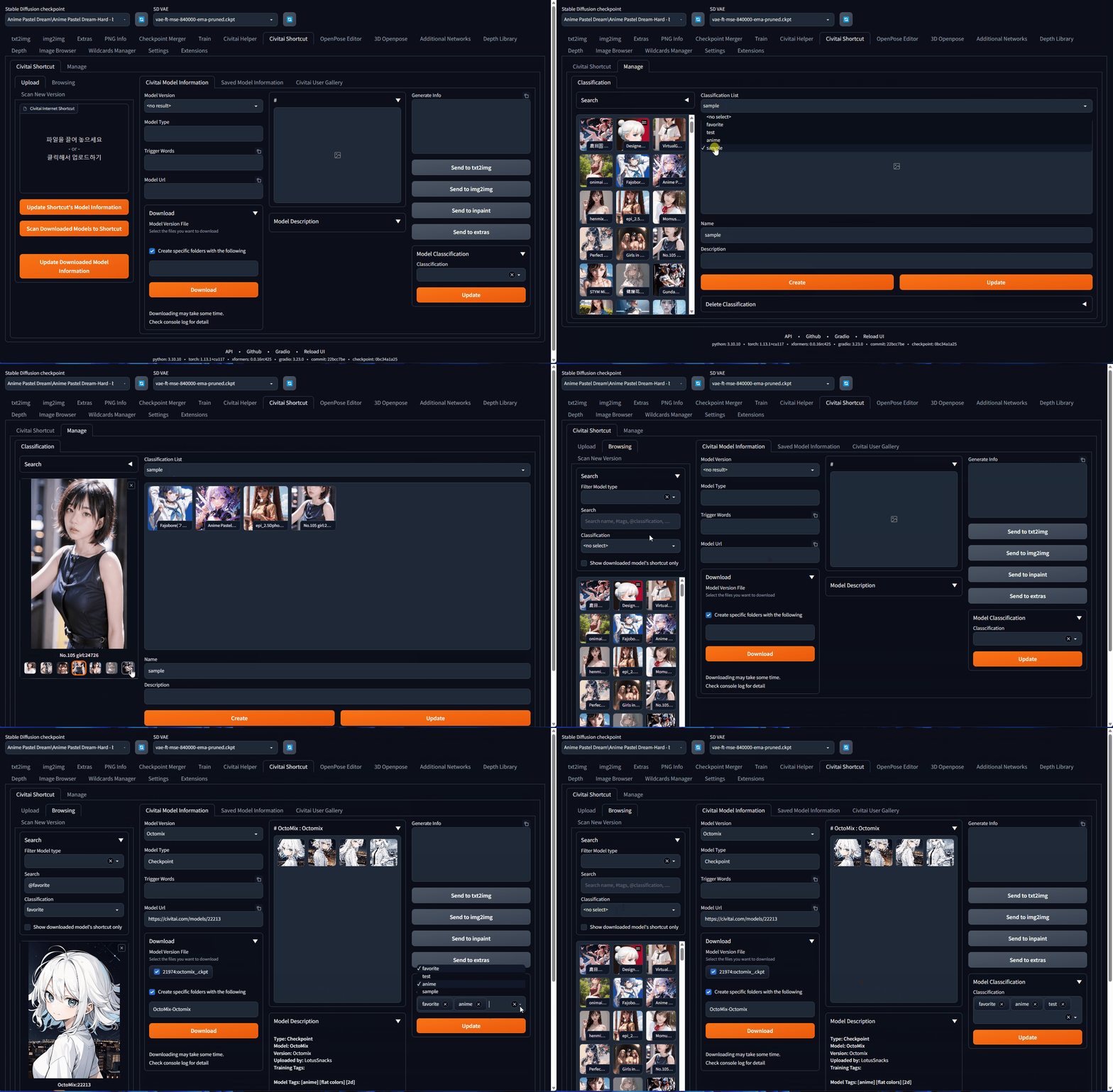
- Classification : Function for managing shortcuts by classification.
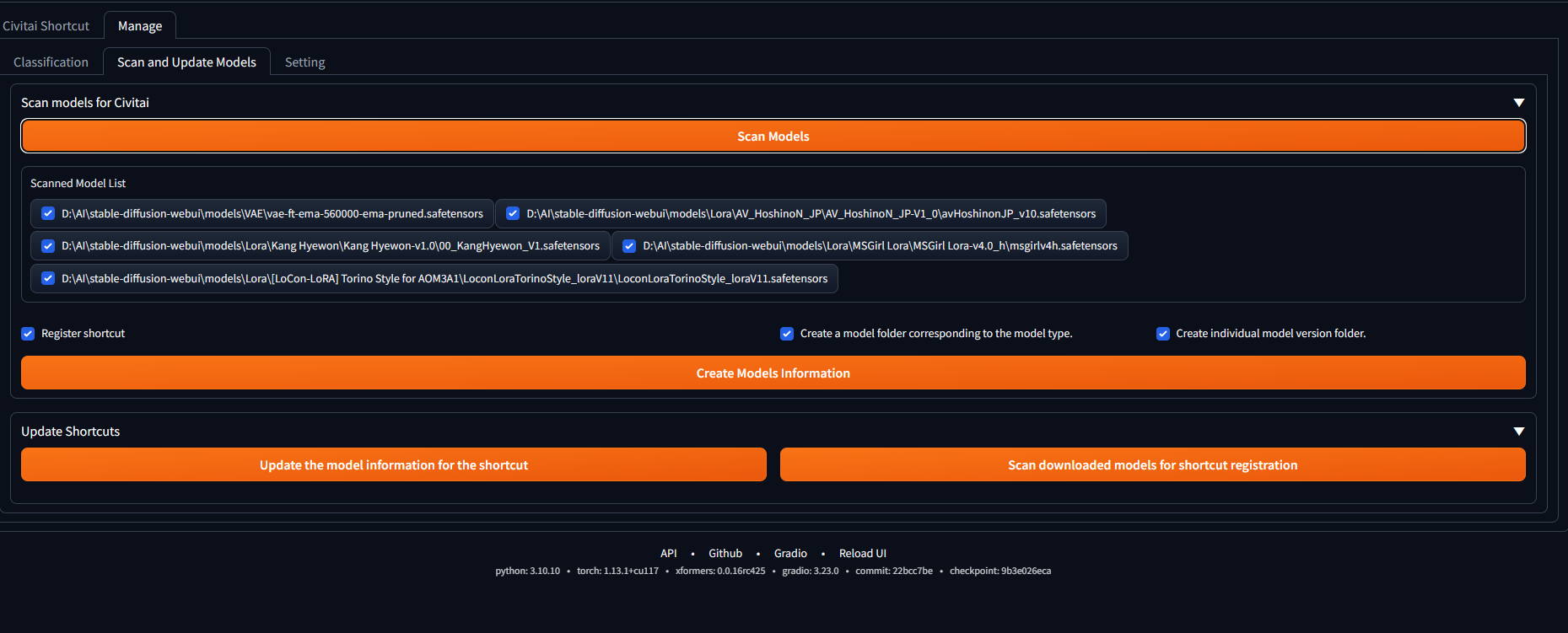
- Scan and Update Models Scan Models for Civitai - Scan and register shortcut for models without model information that are currently held. Update Shortcut - Move the shortcut update function from the Upload tab. Update the model information for the shortcut - Update the information of registered shortcuts with the latest information. Scan downloaded models for shortcut registration - Register new shortcuts for downloaded models that have been deleted or have missing model information.
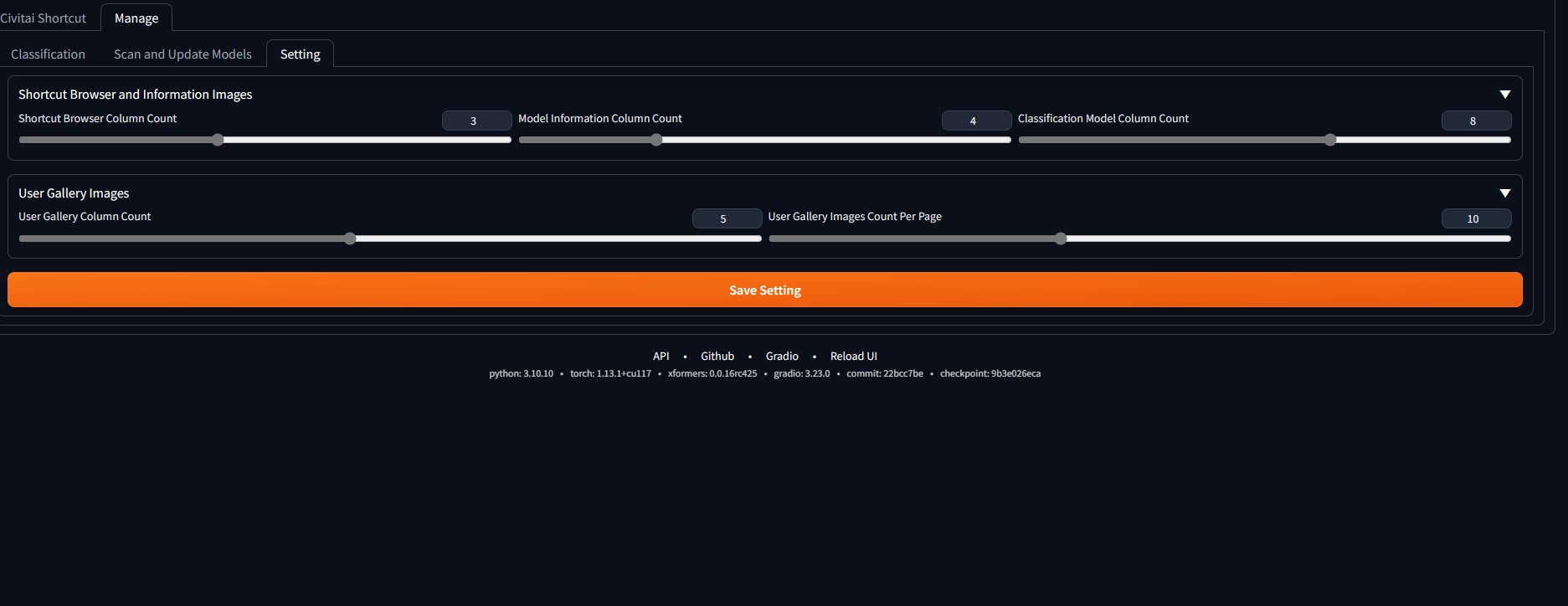
- Setting tab - Set the number of columns in the image gallery.
Features
You can save the model URL of the Civitai site for future reference and storage. This allows you to download the model when needed and check if the model has been updated to the latest version. The downloaded models are saved to the designated storage location.
Notice
When using Civitai Shortcut, five items will be created:
- sc_saves: a folder where registered model URLs are backed up and stored.
- sc_thumb_images: a folder where thumbnails of registered URLs are stored.
- sc_infos: a folder where model info and images are saved when registering a shortcut.
- CivitaiShortCut.json: a JSON file that records and manages registered model URLs.
- CivitaiShortCutClassification.json: a JSON file that records and manages registered classification.
- CivitaiShortCutSetting.json: a JSON file that records setting.
Change Log
v 1.4a
-
The interface design has been changed.
-
More detailed information about the file to be downloaded is provided.
-
A version information file and preview image will be generated even if a file is not selected for download. You can use the "Downloaded Model Information Tab" without actually downloading the file. Please note that even if you have not downloaded the file, it will be recognized as downloaded.
-
The "open folder" function provided in the information tab may be inaccurate if the same file is downloaded multiple times from different locations. Please use the "Downloaded Model Information Tab" for accurate information.
-
There is an error in the "Downloaded Model Information Tab" where downloading files with the same filename will be recognized as all downloaded.
-
There have been some design and functionality changes to the Manage -> Classification section.
-
The create, modify, delete, and update functions for classification have been integrated with the "Shortcut Item" section on the left.
- The update function only updates the name and description of the classification.
- Saving shortcut items registered to the classification should be done using "Save Classification Shortcuts".
-
The "Screen Style" option has been added to Manage -> Setting. You can adjust the ratio between Shortcut Browser and Information Tab according to your monitor or work preference, and apply it. I recommend combining this feature with the Shortcut Browser and Information Images options to find a suitable combination.
-
A new option has been added to set the download folder location for LyCORIS in "Download Folder for Extensions" settings. Previously, LoRA folder was used together, but now it has been added to allow appropriate modifications since LyCORIS extension can also be recognized in extra networks. (Thank you for letting me know.)
-
A "Reload UI" button has been added. It reloads the SDUI. However, please note that it does not include a feature to save settings. Please use the "Save Setting" button next to it for that purpose. :)
-
The internal format of the uploaded files in the Upload section has been slightly modified. The format of "url=civitai model url" has been modified to be recognized. e.g.) sample.txt: url=https://civitai.com/models/64863/cute-oil-impasto-chibi url=https://civitai.com/models/64850/koga-tomoe-from-bunny-girl-senpai url=https://civitai.com/models/64849/blackwhite
-
Drag & drop feature in Upload does not work properly in Linux environment. I apologize for the inconvenience, but please use the textbox above for the time being.
v 1.4
-
A new tab called "Downloaded Model Information" has been added to the Information tab. This tab allows you to view information about the currently downloaded files. A list of versions of the downloaded model is displayed, and selecting a version shows detailed information about the file in the bottom section. In the detailed display section, you can see the actual information about the downloaded file and access the downloaded folder. Please note that the information may be somewhat inaccurate due to reasons such as file duplication. In addition, you can view Civitai-provided information for that version in JSON format.
All "Open Folder" functions only work when the folder exists.
- The "Open Download Image Folder" function opens the folder containing the downloaded images.
- The "Open Saved Information Folder" function opens the folder where the model's information files and images are downloaded when the shortcut is registered. If the folder is deleted, it can be restored using the "Update Model Information" function under "Civitai Shortcut -> Saved Model Information" or "Manage -> Scan and Update Models -> Update Shortcuts: Update the model information for the shortcut".
-
You can set the display style of the Shortcut Browser on the left side. This can be done in "Manage->Setting->Shortcut Browser and Information Images: Shortcut Browser Thumbnail Count per Page". If you set it to 0, the entire list will be displayed as before.
-
Additional feature description 1 (Update the model information for the shortcut): "Manage->Scan and Update Models->Update Shortcuts" is a function that updates the information of already registered shortcuts to the latest information. This applies to all registered shortcuts. Individual updates for shortcuts can be done in "Civitai Shortcut->Saved Model Information: Update Model Information".
-
Additional feature description 2 (Scan new version model): The "Civitai Shortcut->Scan New Version: Scan new version model" function scans for new versions of downloaded model version files. It does not search for models that have not been downloaded.
v 1.3ss
- There have been changes to the rules and methods for downloading the model. You can now specify the folder to download to and set the user-defined classification item as the download item for the model.
- If you set the user-defined classification item as the download item, you cannot create subfolders. The folder for the user-defined classification item specified by the user will be created in the model type base folder (e.g. model/lora) and downloaded.
- If you select "Create Model Name Folder," a folder will be created based on the model name in the model type base folder (e.g. model/lora), and you can create a subfolder with the desired name according to the version.
- Downloaded model files can be freely moved to any desired folder. This extension only facilitates the convenience of downloading files and does not manage downloaded files. You can move them comfortably without any problems.
- Image downloads are downloaded by default to outputs/download-images, and can be set in setting->download for extension->Download Images Folder. Depending on the system, permission settings may be required.
- Since the user-defined classification item is used as the folder name, it is recommended to change difficult-to-use characters for folder creation. The "-" character will be replaced when creating the folder.
- The display type of thumbnail images can be changed. You can set it in setting->Shortcut Browser and Information Images->Gallery Thumbnail Image Style.
- When registering a shortcut, you can set the number of images to download. You can set it in setting->Shortcut Browser and Information Images->Maximum number of download images per version, and when set to 0, all images will be downloaded.
v 1.3c
- Add "Scan and Update Models" and "Settings" tabs to the Manage tab.
- Scan and Update Models tab Scan Models for Civitai - Scan and register shortcut for models without model information that are currently held. Update Shortcut - Move the shortcut update function from the Upload tab. Update the model information for the shortcut - Update the information of registered shortcuts with the latest information. Scan downloaded models for shortcut registration - Register new shortcuts for downloaded models that have been deleted or have missing model information.
- Setting tab Shortcut Browser and Information Images,User Gallery Images - Set the number of columns in the image gallery. Download Folder for Extensions - Can set the download path for specific extensions.
- The name of the model info file that records information about the model has been changed. As a result, even models with a normal model info file may be moved to a new folder when scanning models for Civitai. To prevent this, uncheck the "Create a model folder corresponding to the model type" option.
v 1.3a
- A new feature has been added that allows you to manage and classify items. You can add, delete, and update classification items in the "manage" -> "classification" tab. To add a shortcut, select the desired classification item in the center top and click on the list on the left to register the desired shortcut. When you click, the registered shortcut appears in the center of the screen, and you can remove it by clicking on the registered shortcut. Click the "update" button to complete the registration. In the "civitai shortcut" -> "information" tab, a "model classification" item has been added on the right side, and you can perform registration and deletion of shortcuts for the model corresponding to the desired classification item. After modification, click the "update" button to complete the task.
- In the browsing "search" feature, you can check the items registered in the classification. When you select a classification item from the dropdown list, the selected item appears in the list and works in conjunction with the "filter model type" and "search" features. The "search" feature works by entering items such as tags, classification, and search keywords. The tags, classification, and search keywords are applied with "and" operation, and each item is applied with "or" operation. Each item is separated by ",". Although only one item can be selected from the classification dropdown list, you can enter multiple items by using the "@" prefix.
v 1.2a
- The Downloaded Model tab, which duplicated the functionality of the Saved Model Information tab, has been removed
- The application method for generating image information has been internally modified to include information from Civitai's 'information' field in addition to the image. As a result, there have been changes to the naming convention for saved images. Please update the images using 'Update Shortcut's Model Information' accordingly.
v 1.2
- A Civitai User Gallery tab has been added where users can view the information and images of the models in the gallery. If there are no images available for a particular model, the tab may appear empty. There may also be a delay in the data provided by the API.
- An "Update Downloaded Model Information" button has been added below the "Upload" button on the left-hand side. This button updates the internal information when users rename folders during Stable Diffusion operation.
- The option to download additional networks by selecting them from a list has been removed. This feature was deemed unnecessary as users can simply specify the desired folder in Settings -> Additional Networks. Personally, I use the "models/Lora" folder for this purpose.
- Users can now specify the folder name when downloading a model to an individual folder. The default format is "model name-version name", but users can input their preferred value. If a folder with the same version of the model already exists within the model's folder, that folder name will be displayed.
- Minor design changes have been made.
- Bug: There are several bugs, but when viewing the gallery images at full size, the image control and browsing controls overlap.
v 1.1c
- Measures have been taken to alleviate bottleneck issues during information loading.
- The search function now includes a #tag search feature. Search terms are separated by commas (,) and are connected with an "or" operation within the search terms and within the tags. There is an "and" operation between the search terms and tags.
- The shortcut storage table has been changed to add the #tag search function. Existing shortcuts require an "update shortcut model information" for tag searches.
v 1.1
- When registering a shortcut, model information and images are saved in a separate folder.
- This allows users to access model information from "Saved Model Information" Tab even if there is no connection to the Civitai site.
- "Thumbnail Update" button is removed and replaced with an "Update Shortcut's Model Information" button to keep the model information and images up to date.
- "Download images Only" button is removed from "Civitai Model Information" Tab that can be accessed live, and "Delete shortcut" button is moved to "Saved Model Information" Tab.
- "Delete shortcut" button removes the model information and images stored in sc_infos in one go.
- "Update Model Information" button is added to "Saved Model Information" Tab for individual updating of model information, in addition to "Update Shortcut's Model Information" that updates all model information.
Screenshot