 61db775ed8
|
||
|---|---|---|
| scripts | ||
| .gitignore | ||
| LICENSE | ||
| README.md | ||
| model-keyword-user.txt | ||
| model-keyword.txt | ||
README.md
model-keyword
Automatic1111 WEBUI extension to autofill keyword for custom stable diffusion models.
Installation
Copy the url of the repository ( https://github.com/mix1009/model-keyword ) into the extension tab and press "Install"

From "Extensions/Installed" tab press "Apply and restart UI".

Usage
From txt2img, img2img tab, "Model Keyword" section is added. Model keyword extension is enabled by default. Click Model Keyword or triangle to reveal options.
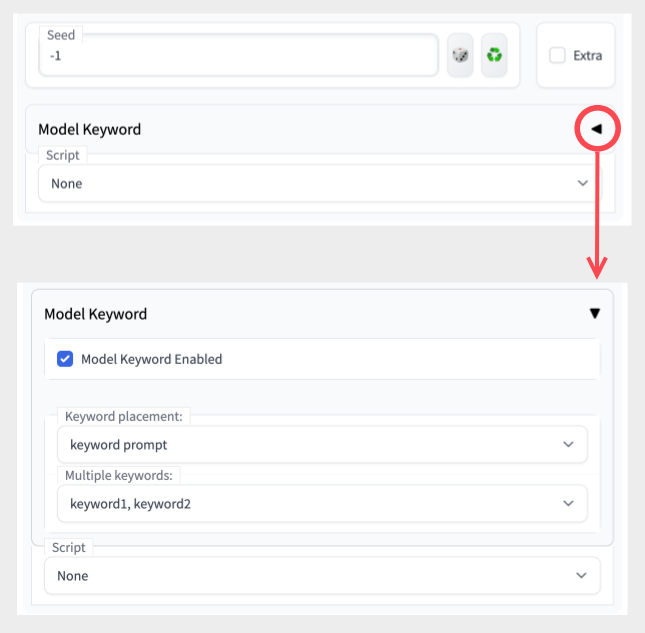
When generating image, the extension will try to figure out which model is used and insert matching keyword to the prompt:

Keyword placement

Multiple keywords

- keyword1, keyword2 - use all keywords separated by comma
- random - choose one random keyword
- iterate - iterate through each keyword for each image generation
- If sd-dynamic-prompts extension is installed, iterate will not work properly. Please disable Dynamic Prompts.
- Alternatively, you can rename model-keyword to sd-model-keyword in the extensions folder. It will change the order of the extension and fix the bug.
- keyword1 - use first keyword
- keyword2 - use second keyword (if it exists)
Add Custom Mappings

-
"Check" -> outputs model filename, hash, matching keyword(s), and source of match in result.
-
"Save" -> save custom mapping with keyword. (Fill keyword)
-
"Delete" -> deletes custom mapping for model if it's available.
-
Mappings are saved in custom-mappings.txt
-
If previous mapping is found, save overwrites it.
-
do NOT edit model-keyword.txt . It can be overwritten or cause conflict while upgrading.
-
hash value for model has been changed in webui(2023-01-14), this extension uses old hash value. Old hash value is no longer displayed in webui.