 cb6bdc071b
|
||
|---|---|---|
| img | ||
| javascript | ||
| scripts | ||
| .gitignore | ||
| README.md | ||
README.md
Stable-Diffusion-Webui-Civitai-Helper
Stable Diffusion Webui Extension for Civitai, to handle your models much more easily.
Feature
- Scan all models to download model information and preview images from Civitai.
- Modified Build-in "Extra Network" cards, to add following buttons on each card:
- 🖼: Modified "replace preview" text into this icon
- 🌐: Open this model's Civitai url in a new tab
- 💡: Add this model's trigger words to prompt
- 🏷: Use this model's preview image's prompt
Install
Go to SD webui's extension tab, go to Install from url sub-tab.
Copy this project's url into it, click install.
Or, just download this project as zip file, unzip it to Your SD webui/extensions.
Then reload UI with "Reload UI" Button in Setting tab.
Done.
How ot use
Scan model
Go to extension tab "Civitai Helper". There is a button called "Scan Model".

Click it, extension will scan all your models to generate SHA256 hash, and use this hash, to get model information and preview images from civitai.
For each model, it will create a json file to save all model info from civitai. This model info file will be "Your_model_name.civitai.info" in your model folder.

If a model info file is already exists, it will skip this model. If a model can not be find in civitai, it will create an empty model info file, so it won't scan this model twice.
Add new models
When you have some new models, just click this button again, to get new model's information and preview images.
Model Card
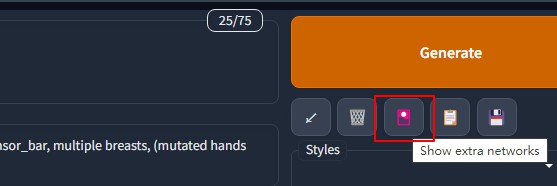
Open SD webui's build-in "Extra Network" tab, to show model cards.
Move your mouse on to the bottom of a model card. It will show 4 icon buttons:
- 🖼: Modified "replace preview" text into this icon
- 🌐: Open this model's Civitai url in a new tab
- 💡: Add this model's trigger words to prompt
- 🏷: Use this model's preview image's prompt

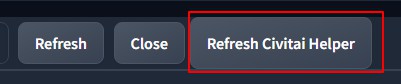
If you click Refresh Button of extra network, those additional buttons will be removed. You can click Refresh Civitai Helper button to bring them back.
Enjoy!